How to Apply for Online Quran Teaching Jobs (Portal Guide + WhatsApp Help)
If you want to know how to apply for online Quran teaching jobs through Online Quran Teaching Jobs, this simple guide walks you through every screen from creating your account to submitting your two voice recordings.
- 100% free: Registration and applying cost nothing. Never pay any fee to anyone.
- Portal only: Hiring happens only through our official portal at apply.onlinequranteachingjobs.com. Applications are not accepted by WhatsApp or email alone.
- Save as you go: Your answers save after every step, so you can pause and continue later.
1. Before you start (quick checklist)
You can complete the entire application on your Android phone or iPhone. For a smooth application without microphone errors:
- Open the link in Chrome or Safari: If you clicked our ad or link inside the Facebook, Instagram, or WhatsApp app, open it in Google Chrome (Android) or Safari (iPhone) before recording. In-app browsers often block the microphone. See How to Record Your Tilawat and English Introduction.
- Sit in a quiet room: Keep TV, fan noise, and other voices away during your two short recordings.
- Keep your email and WhatsApp number ready: You can sign in later with either your email or your WhatsApp number.
Ready to start? Open the official teacher registration page directly:
2. Registering your free teacher account
If you open apply.onlinequranteachingjobs.com/register, you will see two options: Individual Teacher and Academy. Teacher and academy accounts are separate.
- Tap Individual Teacher (and tap Continue if needed).
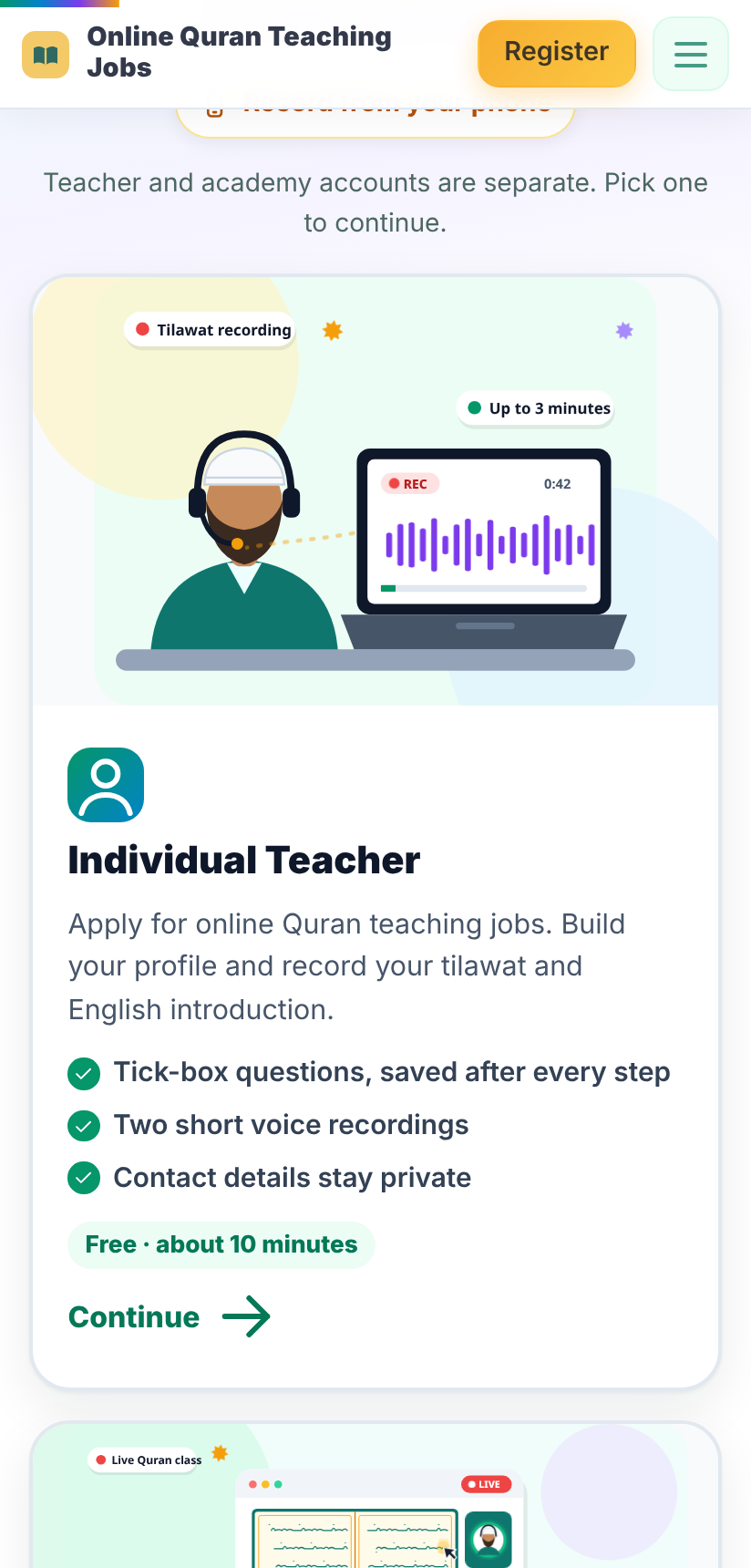
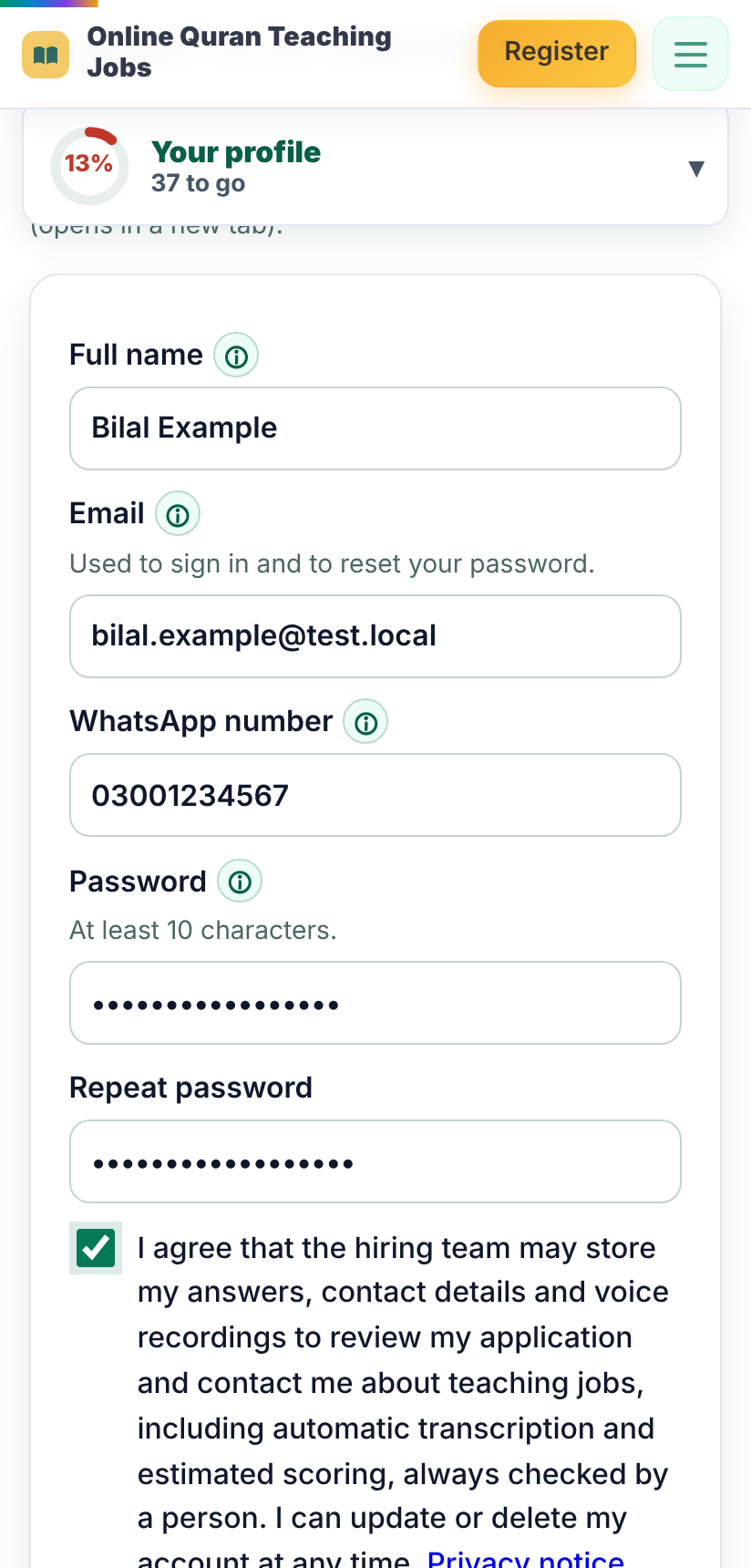
On the Register as an individual teacher page, fill in:
- Full name: Your real name as on your CNIC/ID card. Partner academies only see your first name and the first letter of your surname (for example, Bilal A.).
- Email: Used to sign in and to receive password-reset links if you forget your password.
- WhatsApp number: Pakistani numbers can start with
03XXXXXXXXX(for example,03001234567). Numbers outside Pakistan need the country code (for example,+44…). - Password & Repeat password: Must be at least 10 characters long. A short easy-to-remember sentence works best.
- Privacy consent (required): Tick the first box so our hiring team can store your application and review your recordings (including automatic transcription and estimated scores, always checked by a person).
- Partner academies visibility (recommended): Keep the second box ticked if you want verified partner academies to view your profile and listen to your recordings. Your phone, WhatsApp, and email stay hidden until the hiring team approves an academy’s request.
- Tap Create account.
3. Your account, Teacher ID & completion meter
As soon as you create your account, you get a personal Teacher ID (such as OQTJ-T-00031) and a profile completion ring at the top of the screen:
- Red → Amber → Green: The ring turns 100% green when every required step and both recordings are finished.
- “Fix these to reach 100%”: On your dashboard (My application), any missing item has a direct link that takes you straight to the exact field you need to fill.
- Forgot password? If you log out and forget your password, tap Forgot password? on the sign-in page and enter your email or WhatsApp number. A 1-hour reset link is sent to your email (check Spam/Promotions too).
- Account page: From the top menu under Account, you can change your password, toggle whether partner academies can see your profile, or delete your account at any time.
4. Step 1: About you (including the postal code tip)
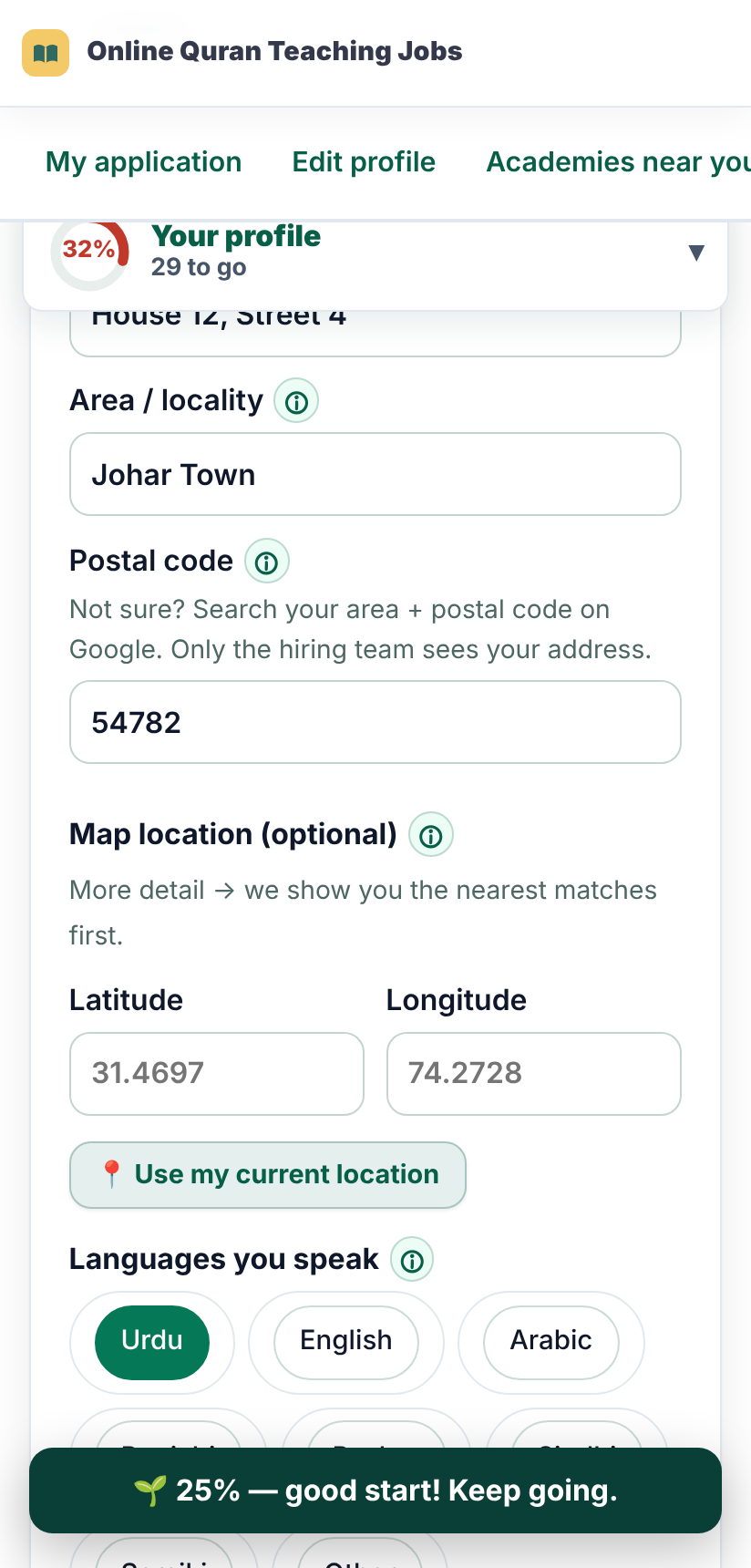
Step 1 collects your basic profile and location details. All location details are used only by the hiring team and to sort nearest academies first — your street address is never shown to academies.
- Gender & Age range: Gender is required (many families ask for female teachers for girls and male teachers for boys). Age range is optional.
- Country, Province / state & City: Pick Pakistan (or your country), type your province (for example, Punjab, Sindh, Khyber Pakhtunkhwa), and enter your city.
- In Pakistan — detailed address & map pin (required): Choose your Province / Territory, District / City, and Tehsil / Town / Area / Village from the dropdowns (or choose Other and type your village/town name if unlisted), enter your street address, and tap 📍 Use my current location (or paste coordinates from Google Maps) to set your map pin. Postal code is optional.
- Outside Pakistan — online-only: Choose your country and complete the rest of your profile — no physical address or map pin is required.
- Languages you speak: Tick every language you can speak comfortably (Urdu, English, Arabic, Punjabi, Pashto, Sindhi, Saraiki, or Other).
- Short bio (optional): Write 1–2 lines about how you teach. Do not write phone numbers, emails, or links inside the bio — they are removed automatically.
<your area name> <your city> postal code (for example: “Johar Town Lahore postal code” → 54782, or “G-10 Islamabad postal code” → 44000).
5. Step 2: Quran & qualifications
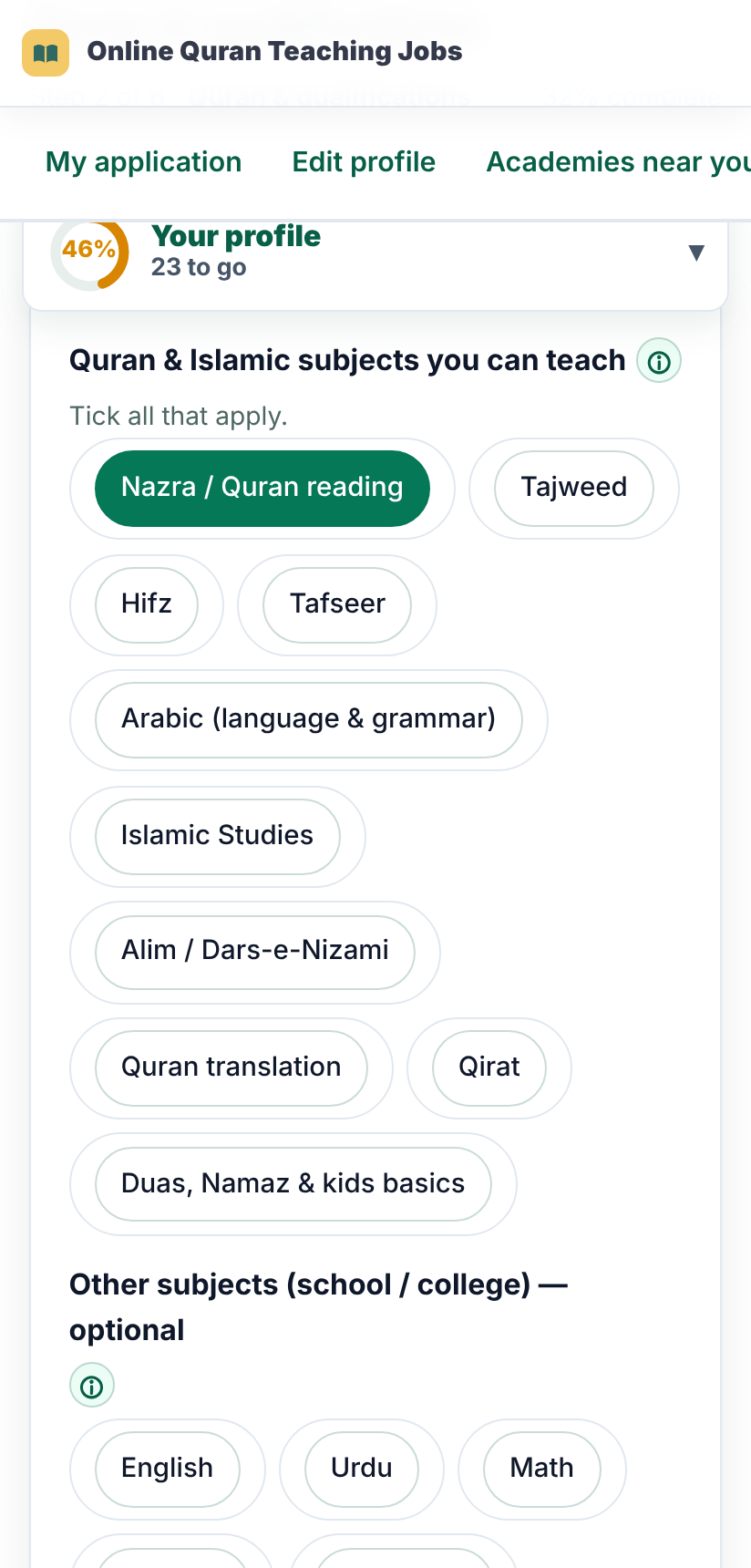
Tick the subjects and qualifications that match what you can teach today:
- Quran & Islamic subjects: Tick all that apply — Nazra / Quran reading, Tajweed, Hifz, Tafseer, Arabic, Islamic Studies, Alim / Dars-e-Nizami, Quran translation, Qirat, or Duas, Namaz & kids basics (including Noorani Qaida).
- Other subjects (optional): Tick school/college subjects if you can also help students with English, Urdu, Math, Science, or Computer.
- Hafiz / Hafiza: Choose Complete, Partial / in progress, or No.
- Certificates & Highest education: Tick any Wifaq / Tanzeem board certificate, Tajweed/Qirat certificate, Hifz sanad, Ijazah, Alim/Alima, or university degree — or tick No formal certificate. For education, Madrasa education only is completely fine.
- Your spoken English & Arabic: Choose honestly. Your Step 5 English recording lets the team hear your real speaking level.
6. Step 3: Experience & availability
Step 3 covers your teaching background and the hours you can work:
- Experience & online teaching: Choose your total Quran teaching years (including madrasa, mosque, home tuition, and online), whether you have taught live online before, and your years online.
- Students, Levels, Formats & Platforms: Tick who you teach (children, teens, adults, non-Urdu speakers, etc.), your teaching languages, and video tools you have used (Zoom, Skype, Google Meet, Teams, WhatsApp video, or None yet).
- Teaching question: Choose what you usually do when a beginner makes a pronunciation mistake.
- Kind of job & Shifts: Tick whether you want Online from home, Office-based, Hostel (live-in), Full-time, or Part-time.
- Optional extras: You can add up to 3 previous academies, a reference (ustadh, former employer, or parent), and a CV (PDF, DOC, or DOCX up to 5 MB). None of these three are required.
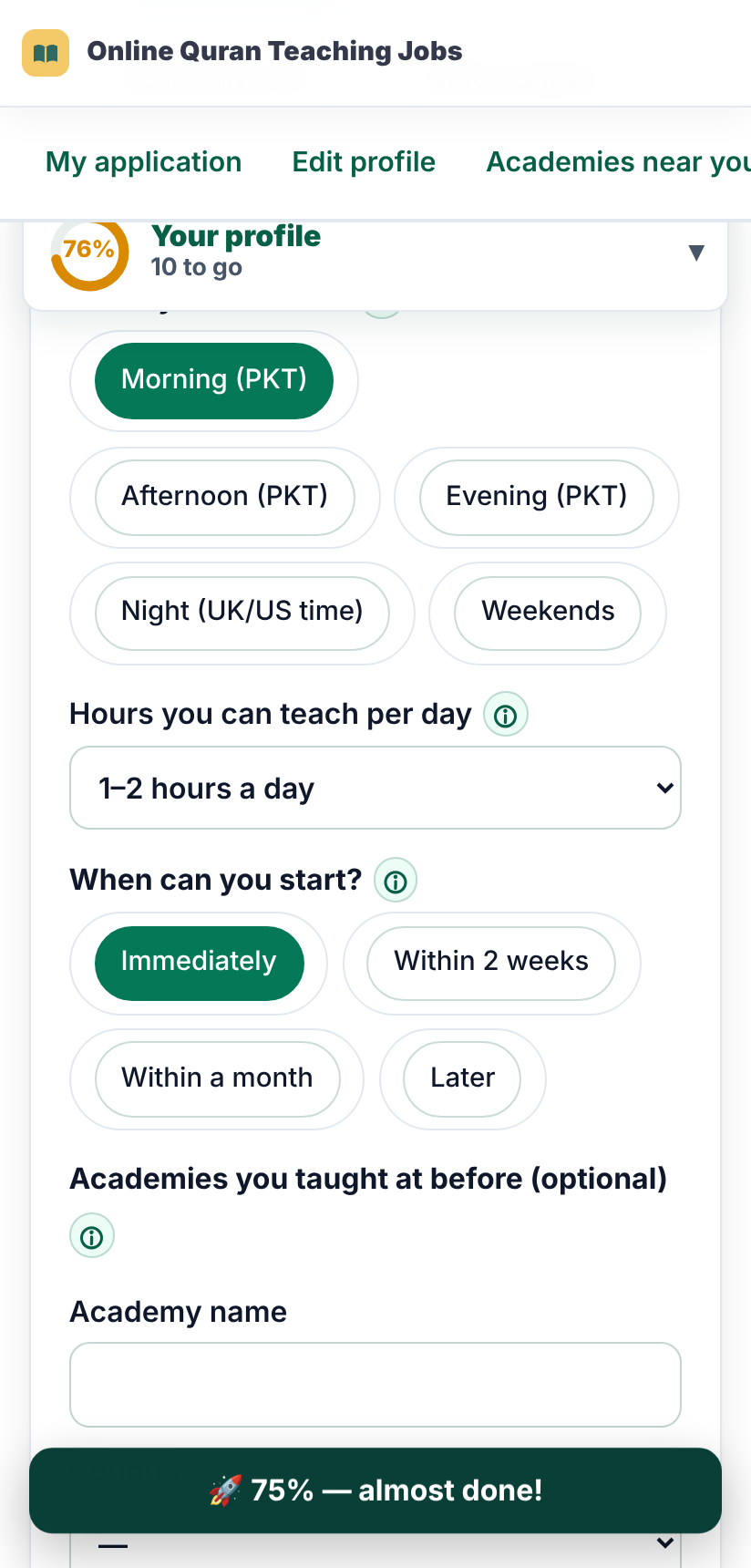
- Morning (PKT): ~8 am – 1 pm PKT
- Afternoon (PKT): ~1 pm – 6 pm PKT
- Evening (PKT): ~6 pm – 11 pm PKT
- Night (UK/US time): ~11 pm – 8 am PKT (ideal for UK evening & US/Canada students)
- Weekends: Saturday & Sunday classes
7. Step 4: Teaching setup
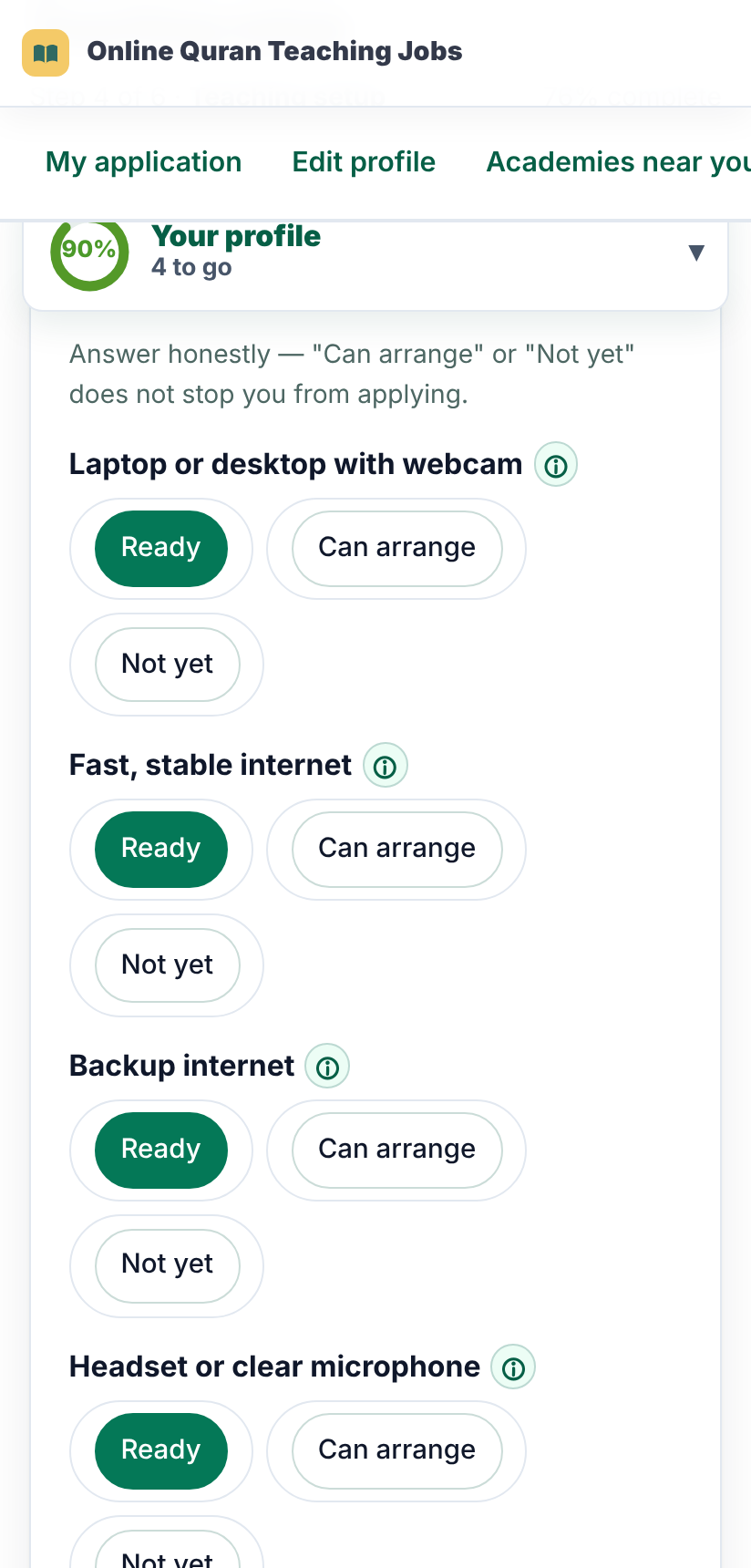
Answer the 6 setup questions (Laptop or desktop with webcam, Fast stable internet, Backup internet, Headset or clear microphone, Quiet teaching space, Backup power such as UPS/solar) with Ready, Can arrange, or Not yet.
Important: Choosing Can arrange or Not yet does not stop you from applying. Answer honestly and tap Save and continue.
8. Step 5: Recordings (Tilawat, Surah/Ayat & English intro)
Step 5 is the most important part of your application. You need to complete three items here:
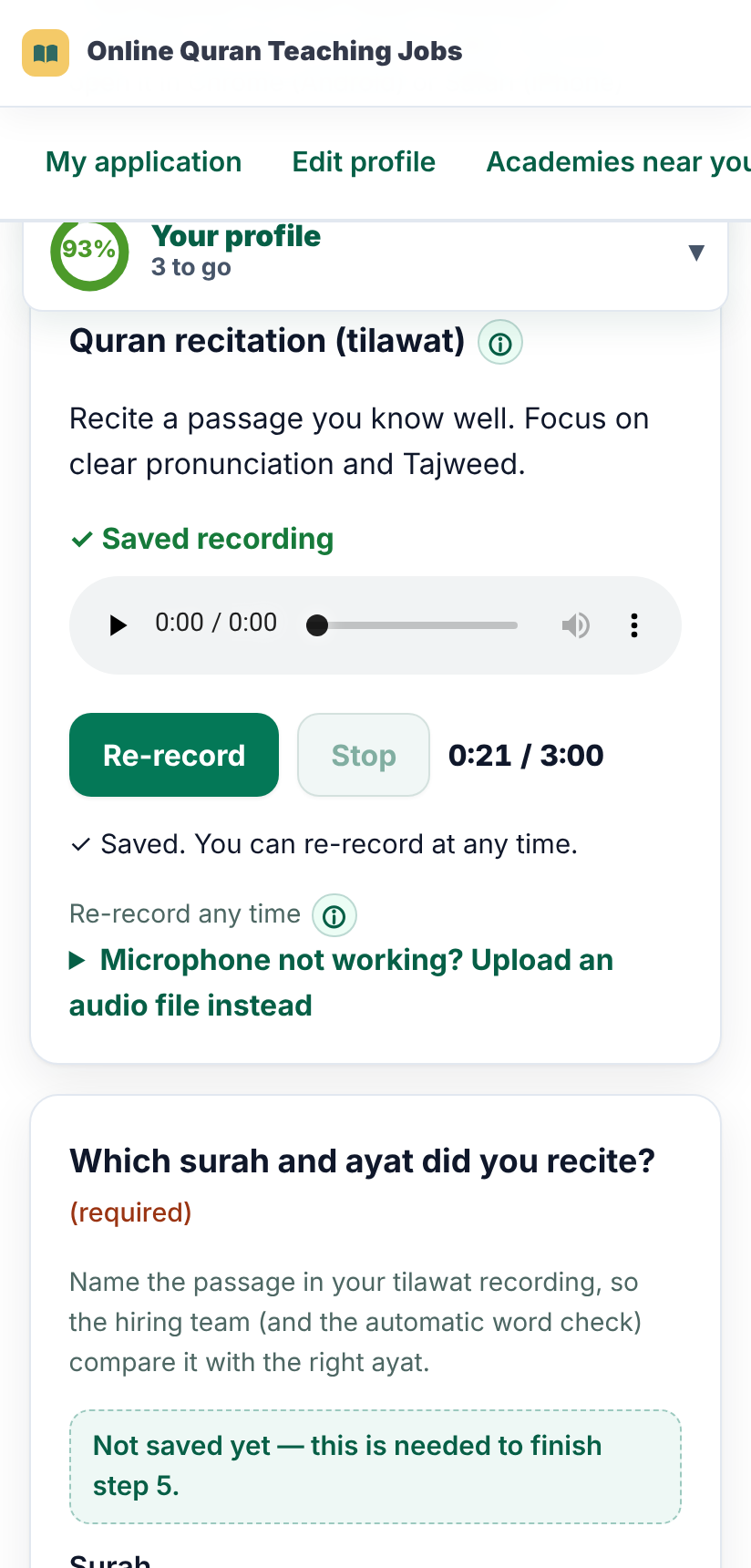
- Recording 1 — Quran recitation (tilawat)
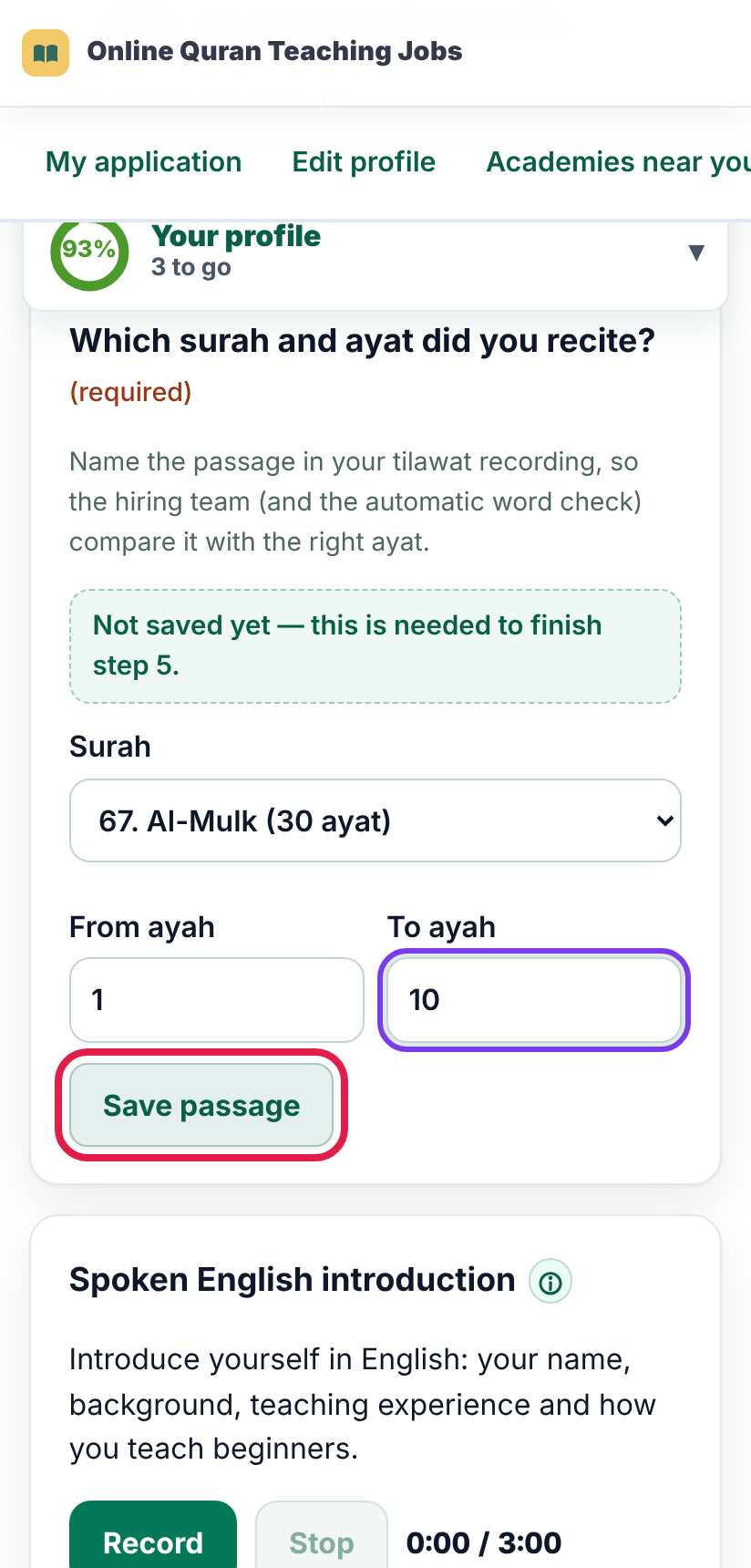
- Which surah and ayat did you recite? (and press Save passage)
- Recording 2 — Spoken English introduction
How to record & save your Tilawat
- Recite a passage you know well, calmly and with clear tajweed (1 to 2 minutes is ideal).
- Minimum 20 seconds, maximum 3 minutes: If you stop before 20 seconds, the portal will ask you to record again for at least 20 seconds. At 3 minutes the timer stops automatically.
- Tap Record → tap Allow when your phone asks for microphone permission → recite → tap Stop.
- Listen to your preview, then tap Save recording. Wait until you see ✓ Saved recording.
Right below the Tilawat box is Which surah and ayat did you recite? Choose the exact Surah (1–114), type From ayah and To ayah (up to 50 ayat), and tap the Save passage button. Tap Save passage and wait for ✓ Saved. (If you fill in all three boxes and tap Continue, the portal now saves the passage for you, but tapping Save passage is the safest way.)
How to record your Spoken English introduction
- Speak in English for at least 20 seconds (up to 3 minutes) as if you are introducing yourself to a UK or US parent: say your name, your teaching experience, which subjects you teach, and how you help beginners.
- Do not read from a paper. Speak mainly in English. A few Urdu words are fine, but an introduction that is mostly in Urdu or Roman Urdu gets a low English estimate.
- Tap Record → Stop → listen → Save recording.
Microphone not working? Fixes for Android, iPhone & file upload
The short version is below. For every case with screenshots, read How to Record Your Tilawat and English Introduction.
- Came from Facebook or WhatsApp? In-app browsers often block the microphone.
- Android: Tap the ⋮ menu (top right) → Open in Chrome. If still blocked, tap the 🔒 lock icon next to the website address → Permissions → Microphone → Allow, then reload.
- iPhone / iPad: Tap ⋯ or the Share icon → Open in Safari. If you tapped “Don’t allow” earlier, go to iPhone Settings → Safari → Microphone → Allow, then reload the page.
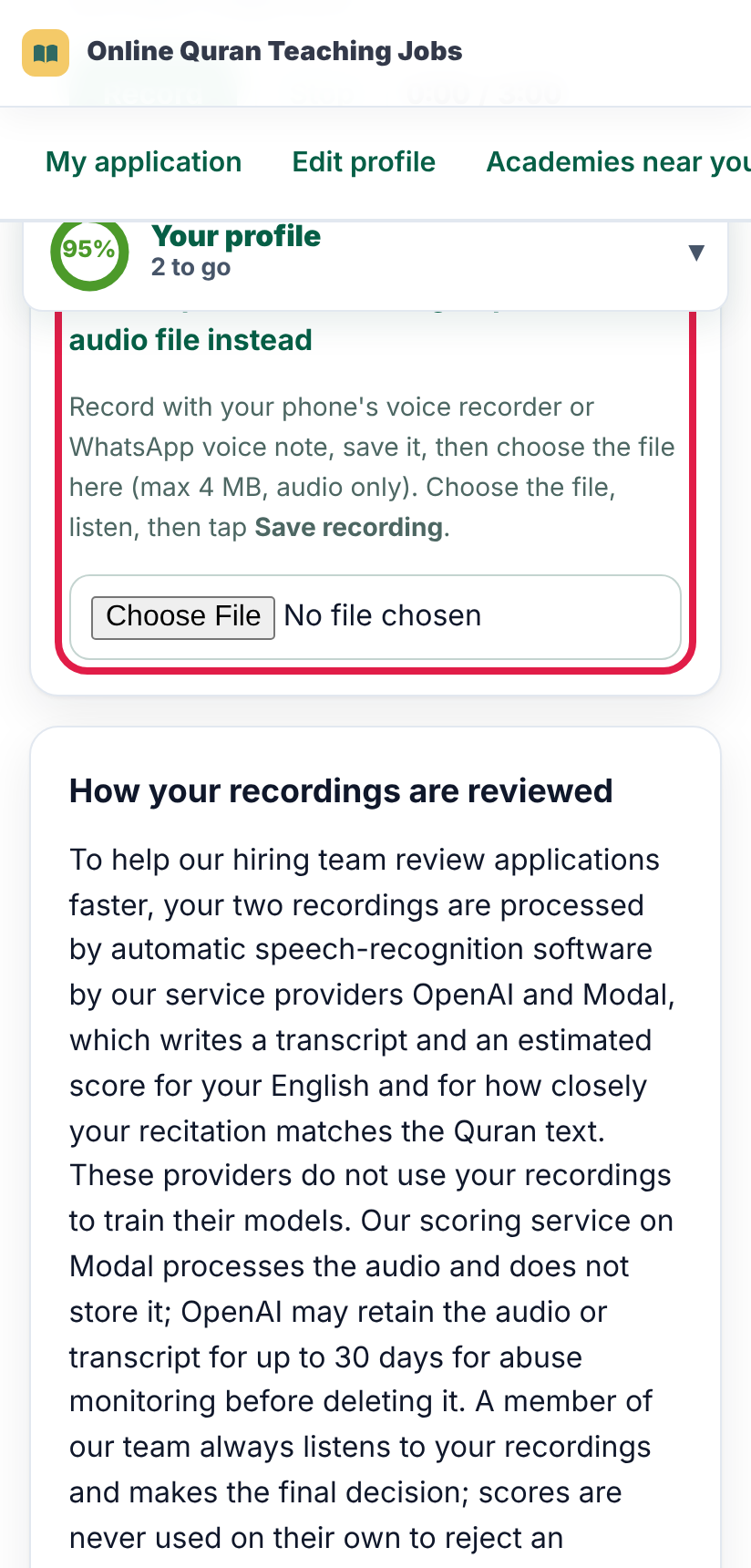
- Upload a recording as a fallback: Tap Microphone not working? Upload an audio file instead. Record yourself using your phone’s Voice Recorder app (or save a voice note), then choose the file. Accepted formats:
.m4a,.mp4,.mp3,.webm,.ogg,.opus, or.wav(maximum 4 MB, up to 3 minutes). Tap Save recording after previewing it.
9. Step 6: Review & submit
Tap Continue to reach Step 6 (Review & submit). Check that:
- All your answers look right.
- Recordings shows
Tilawat ✓ · English ✓. - Recitation passage shows the Surah and ayat you recited (not “Not named yet”).
If anything is still missing, Step 6 shows a short list of the exact items (for example Tilawat recording or Surah and ayat you recited). Each item is a link to the right place. When everything is ready:
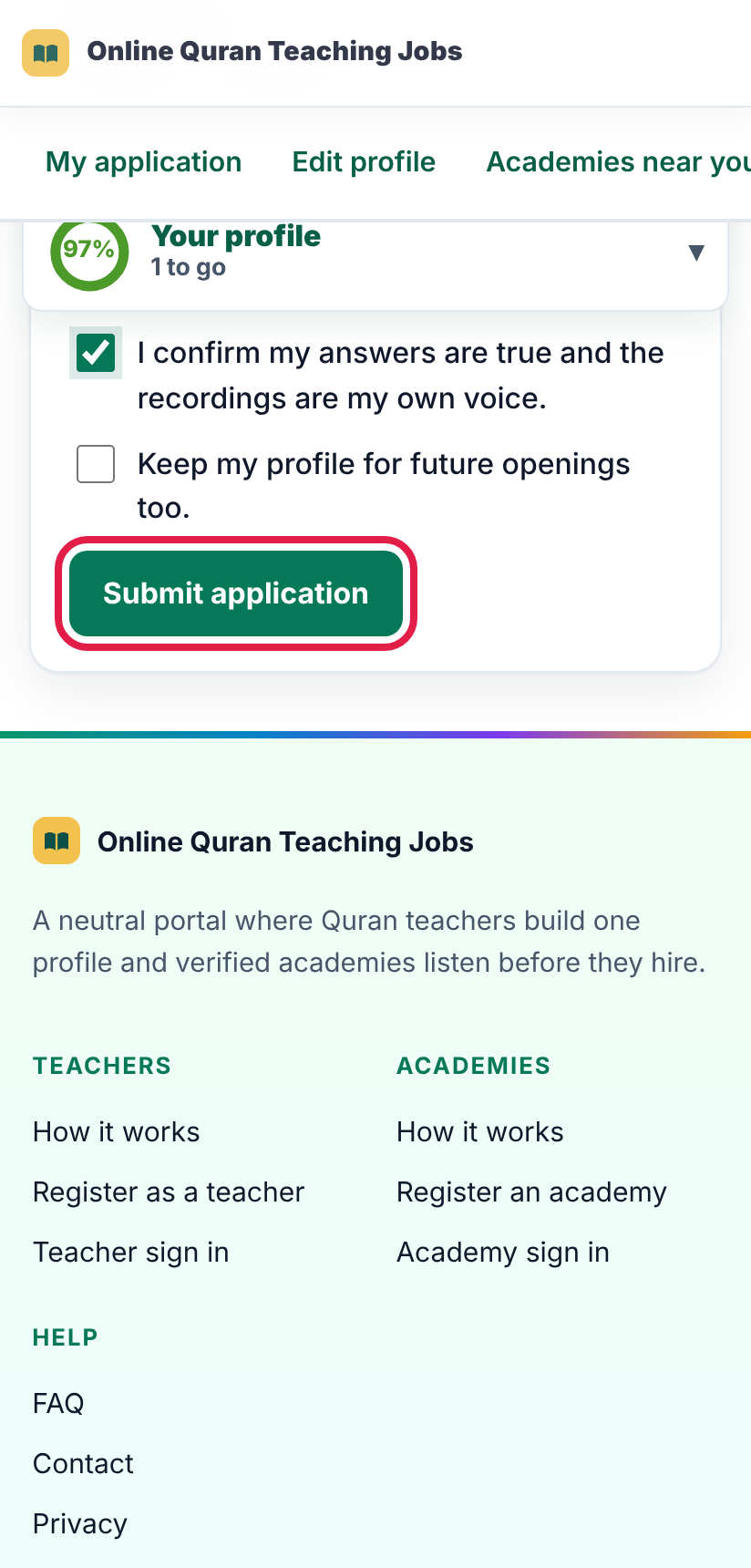
- Tick I confirm my answers are true and the recordings are my own voice.
- Optionally keep Keep my profile for future openings too ticked.
- Tap Submit application.
10. What happens after you submit
- Status updates: Your dashboard status changes to Submitted — waiting for review.
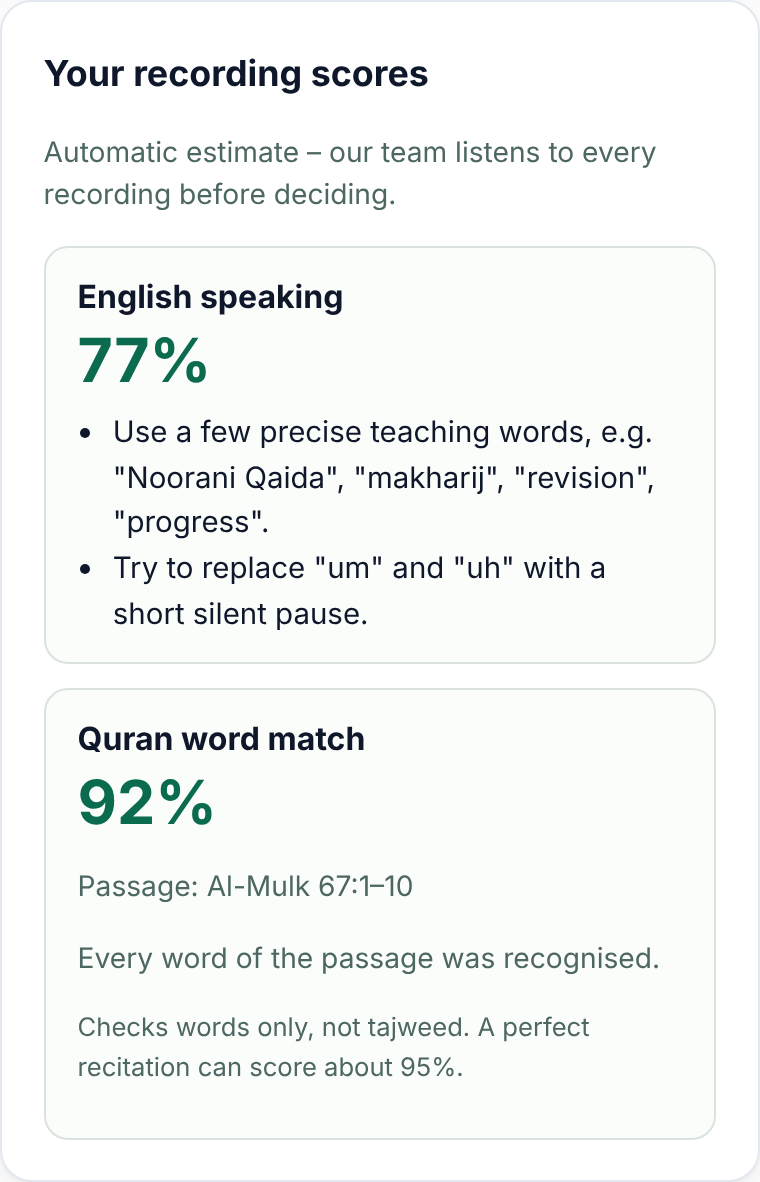
- Automatic recording scores: After you submit, two read-only estimated scores appear once they are ready, on your dashboard under Your recording scores — English speaking (%) with short tips, and Quran word match (%). Remember: these are only automatic estimates (Quran word match checks words against the Mushaf, not tajweed). A real person on our hiring team always listens to both recordings before deciding.
- Review & shortlisting: If shortlisted or selected for an interview, the hiring team contacts you on your WhatsApp number or phone.
- Privacy & partner academies: Verified academies only see your first name, surname initial, answers, and recordings (if you opted in). Your phone number, WhatsApp, email, and street address stay hidden unless the hiring team approves a specific academy’s request.
- Updates later: You can still sign in any time to update answers or re-record; the hiring team is notified that you made changes.
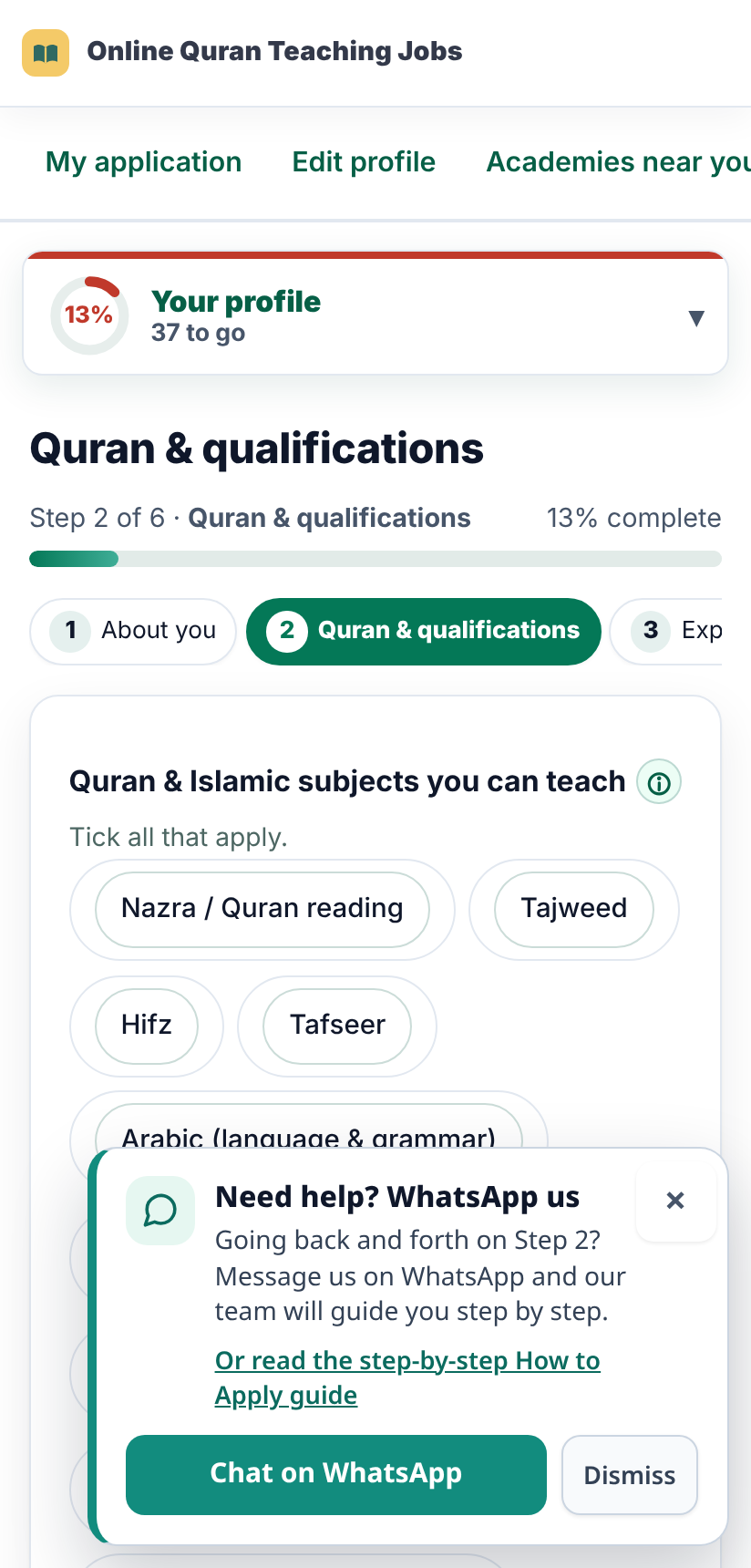
If something on the form is not working, message our team on WhatsApp at +1 929-529-8312 and tell us which step you are on. We help you fill the form; applications themselves are only accepted on the portal at apply.onlinequranteachingjobs.com. Inside the portal, a small “Need help? WhatsApp us” box may also appear if you seem stuck.
11. Frequently Asked Questions (FAQ)
1. Why is my microphone not working on Step 5?
Most microphone problems happen when you open the portal inside the Facebook, Instagram, or WhatsApp in-app browser, or when microphone permission was blocked. Open the page directly in Chrome (Android) or Safari (iPhone) and allow microphone permission when asked. If it still fails, use the Upload an audio file instead option right below the Record button.
2. How do I open the link in Chrome or Safari from Facebook or WhatsApp?
On Android, tap the three dots (⋮) at the top-right corner of the screen and choose Open in Chrome (or Open in browser). On iPhone / iPad, tap ⋯ or the Share icon and choose Open in Safari. Then sign back in and go to Step 5.
3. My microphone is still blocked — can I upload an audio file instead?
Yes! On Step 5, tap Microphone not working? Upload an audio file instead. Record your tilawat or English intro with your phone’s Voice Recorder app (or save a WhatsApp voice note), then select that file. Supported formats are .m4a, .mp4, .mp3, .webm, .ogg, .opus, and .wav, up to 4 MB and up to 3 minutes long. After previewing, tap Save recording.
4. Why did the portal say “That take was only X seconds”?
Both recordings (tilawat and English introduction) must be at least 20 seconds long and can be up to 3 minutes. If you tap Stop before 20 seconds, record again and speak or recite for at least 25–60 seconds.
5. Can I listen to my recording and re-record it?
Yes. Every time you tap Stop, you see an audio player to listen before saving. If you are not happy, tap Discard and record again. Even after saving, you can tap Re-record at any time — your old saved recording is replaced only when you tap Save recording on the new take. (Note: while your application is a draft, automatic scoring allows 1 first score plus at most 1 re-score if you replace a recording.)
6. Why does Step 5 still show incomplete after I recorded my tilawat?
There are three common reasons: (1) you recorded a take but forgot to tap Save recording, (2) you selected a Surah and ayat under Which surah and ayat did you recite? but forgot to tap the Save passage button, or (3) you have not saved your Spoken English introduction yet. Check the green completion bar at the top to see which item is missing.
7. Which surah and ayat should I recite?
You can choose any surah from 1 to 114 (up to a 50-ayah range) that you know well. A calm 1–2 minute recitation with clear makharij and tajweed is ideal (for example, Surah Al-Mulk ayat 1–10 or Surah Ar-Rahman ayat 1–16). Always select the exact surah and ayat range you recited and press Save passage.
8. What should I say in the Spoken English introduction?
Speak naturally in English (for at least 20 seconds, ideally 45–90 seconds) as if speaking to a UK or US parent: share your name, how many years you have taught, which subjects you teach (Qaida, Nazra, Tajweed, Hifz), and how you teach beginners patiently. Do not read from paper, and keep the whole recording in English.
9. Is postal code or a physical address required outside Pakistan?
Postal code is optional in Pakistan (you can leave it blank if unsure). Outside Pakistan, teachers work online-only so no physical street address or map pin is required — only your country and full teaching profile.
10. I do not have a laptop, UPS, or backup internet yet — can I still apply?
Yes! On Step 4 (Teaching setup), choose Can arrange or Not yet honestly. Selecting “Can arrange” or “Not yet” does not stop you from completing or submitting your application.
11. I have only madrasa education or no formal paper certificate — can I apply?
Yes. On Step 2, Highest education includes Madrasa education only, and Certificates includes No formal certificate. Your recitation and teaching answers matter most.
12. What do the shift times mean (especially Night UK/US time)?
All shifts on the portal are listed in Pakistan Time (PKT, UTC+5). Morning is ~8 am–1 pm PKT, Afternoon is ~1–6 pm PKT, Evening is ~6–11 pm PKT, and Night (UK/US time) is ~11 pm–8 am PKT (when students in the UK, US, and Canada take evening classes).
13. Why do you ask for my street address and WhatsApp number? Who sees them?
Only our hiring team sees your street address, WhatsApp number, email, reference, and CV. Verified partner academies only see your first name and surname initial (for example, Bilal A.), city, answers, and recordings. Your contact details are shared with a specific academy only after the hiring team approves that academy’s request.
14. I forgot my password — how do I reset it?
Go to the Forgot password page, enter the email or WhatsApp number you registered with, and tap Send reset link. Check your email inbox (and Spam/Promotions folder) within 1 hour for the reset link.
15. Can I sign in using my WhatsApp number instead of my email?
Yes! On the Sign in page, the first box accepts either your registered email address or your registered WhatsApp number.
16. Can I save my application halfway and finish it later?
Yes. Every step is saved when you tap Save and continue (and each recording saves when you tap Save recording). Sign in any time to pick up where you left off. Please finish soon: the hiring team reviews submitted applications only, and we do not send reminders, so it is up to you to come back and press Submit application.
17. When and where do I see my recording scores?
Your scores are shown only after you submit your application on Step 6 (there are no instant scores while you record). After submitting, open your dashboard (My application) and look under Your recording scores. Remember, these are only automatic estimates — a member of our hiring team always listens to your recordings.
18. What happens after I submit my application, and how long does review take?
Your status changes to Submitted — waiting for review. Our hiring team listens to your tilawat and English recordings in order. If shortlisted or invited for an interview, the team contacts you via WhatsApp or phone call. You can check your latest status any time on your dashboard.
19. Is there any registration fee, or can I apply by sending voice notes on WhatsApp?
No — applying is 100% free, and all hiring is done only through the portal (apply.onlinequranteachingjobs.com). We do not accept applications sent directly over WhatsApp, because the portal keeps your recordings, passage, and answers organised safely in one place.
20. Can I update my answers or delete my account later?
Yes. You can sign in any time to update your profile steps, re-record audio, turn academy visibility on or off on your Account page, or permanently delete your account whenever you wish.
Ready to apply now? Create your free teacher profile. You can save and continue later.
Ready? Applications are accepted only on the official portal.