How to Record Your Tilawat and English Introduction
Step 5 of the teacher application asks for two short voice recordings: your Quran recitation (tilawat) and a spoken English introduction. This guide shows how to record both on Android or iPhone, how to fix microphone problems, and how to upload a file if recording in the browser does not work.
1. Use Chrome or Safari, not the Facebook or WhatsApp browser
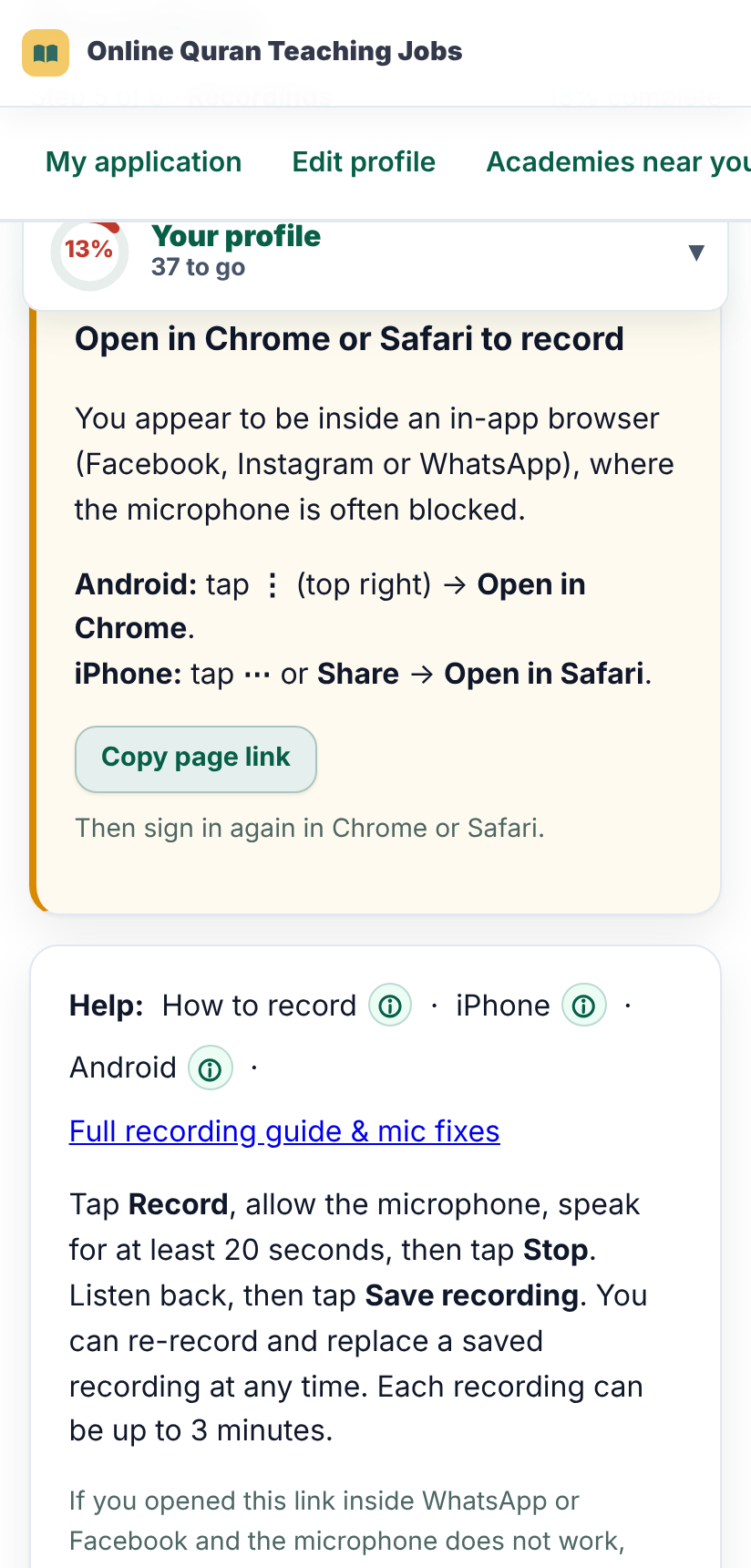
If you opened our link from a Facebook ad, Instagram or WhatsApp, the page may be running inside that app’s own browser, where the microphone is often blocked. The portal notices this and shows an Open in Chrome or Safari to record box.
- Android: tap ⋮ (top right) → Open in Chrome.
- iPhone: tap ⋯ or Share → Open in Safari.
- You can also tap Copy page link, paste it into Chrome or Safari, and sign in again. Everything you saved is still there.
2. Allow the microphone
When you tap Record for the first time, your phone asks for permission. Tap Allow.
- Android (Chrome): if you tapped Block by mistake, tap the 🔒 lock next to the address → Permissions → Microphone → Allow, then reload the page.
- iPhone (Safari): open Settings → Safari → Microphone and choose Allow (or Ask), then reload the page.
- Microphone busy? If you are on a WhatsApp or phone call, end it first. The portal tells you when another app is using the microphone.
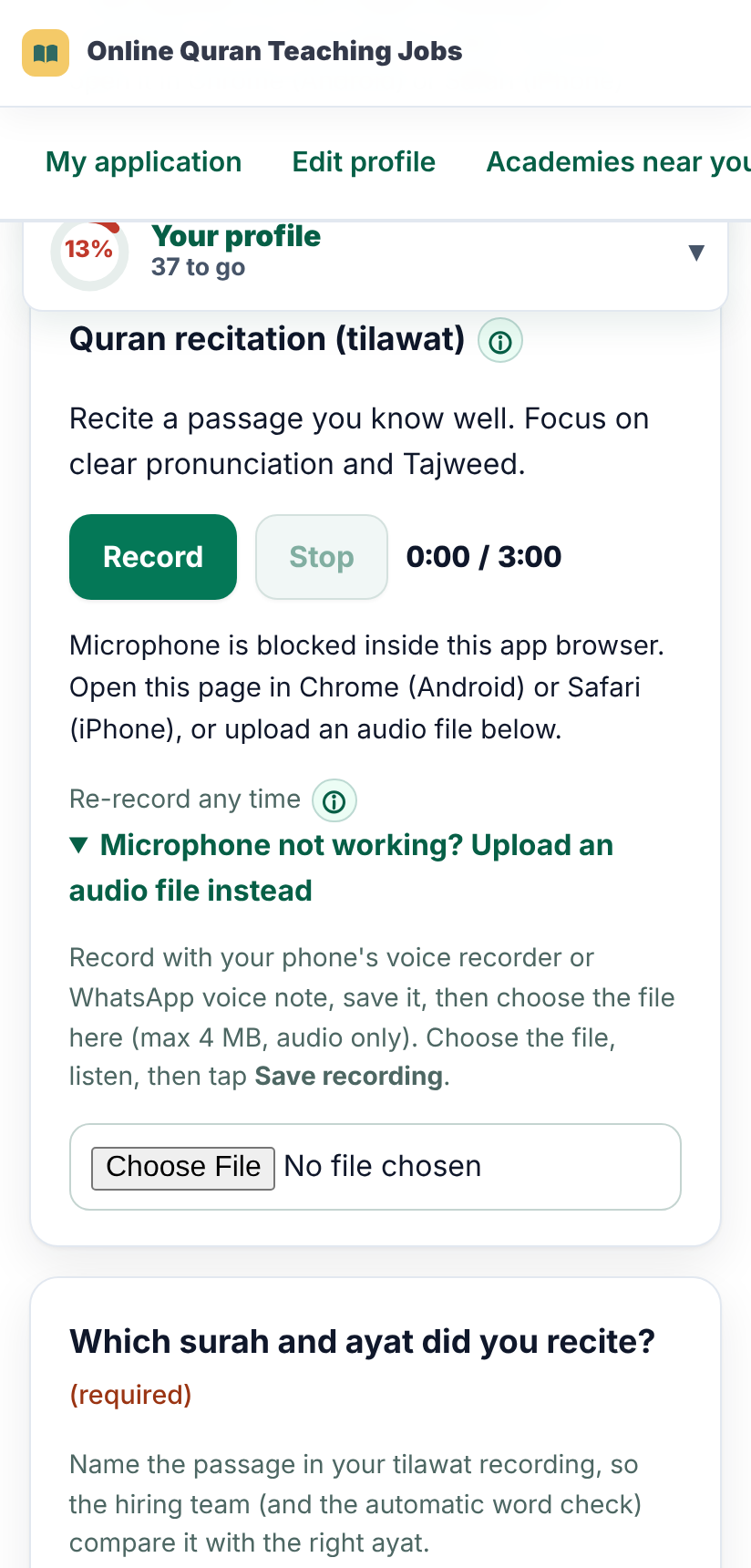
3. Record and save your tilawat
- Sit in a quiet room. Turn off the fan or TV if you can.
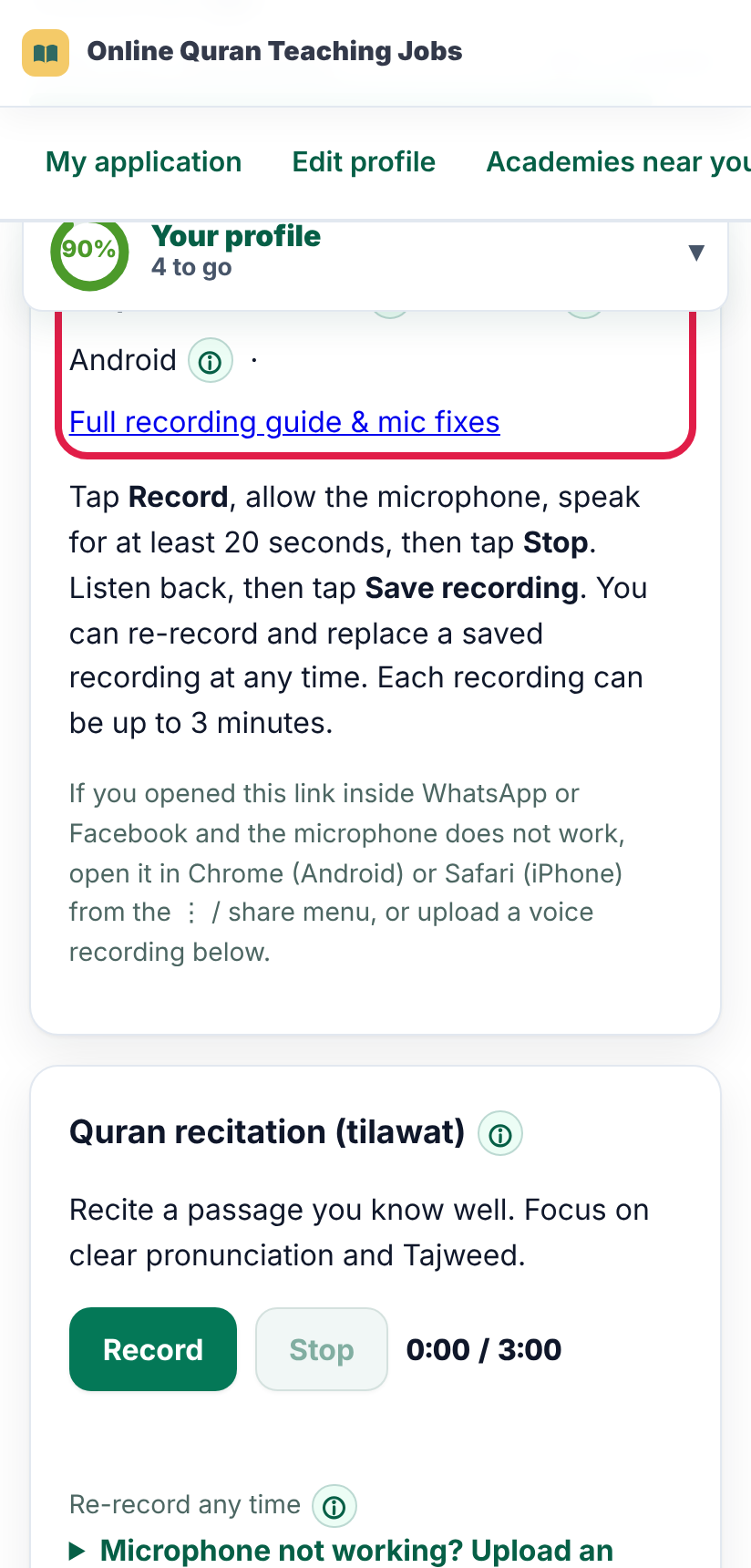
- Tap Record and recite a passage you know well, calmly and with tajweed.
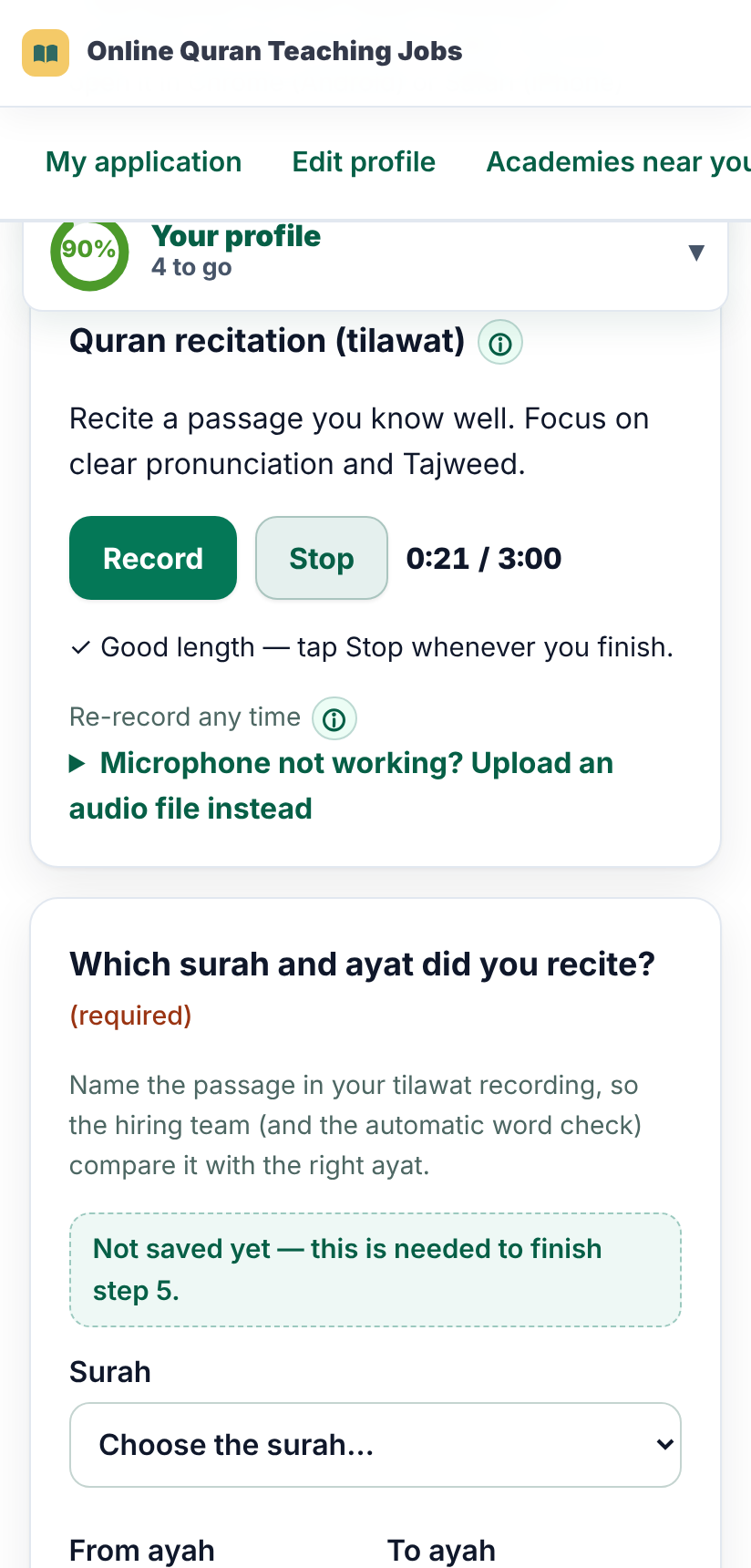
- After 20 seconds the portal shows ✓ Good length. Keep going until you finish the passage (up to 3 minutes; it stops by itself at 3:00).
- Tap Stop, listen to your take, then tap Save recording. Wait for ✓ Saved.
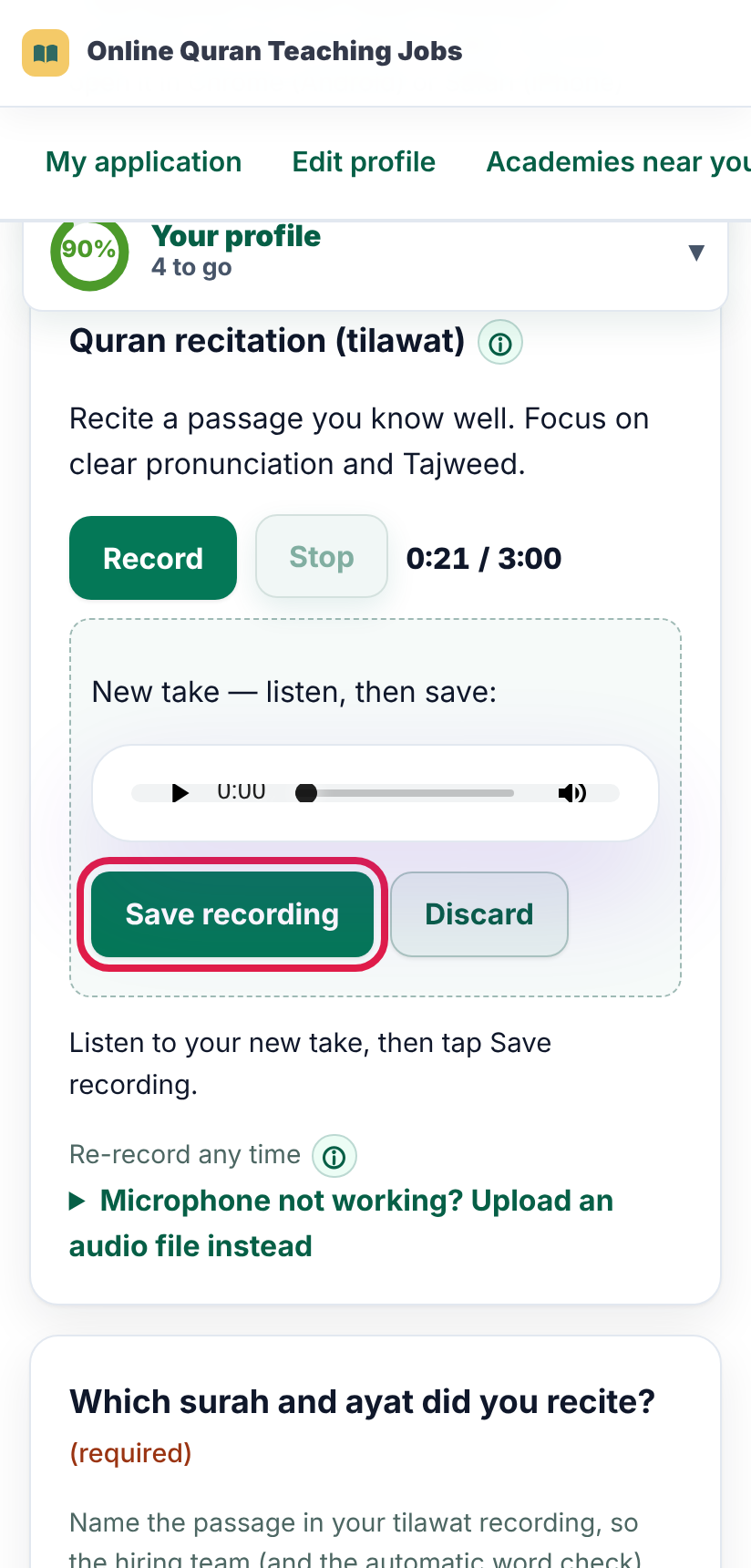
You can tap Re-record later to replace a saved recording.
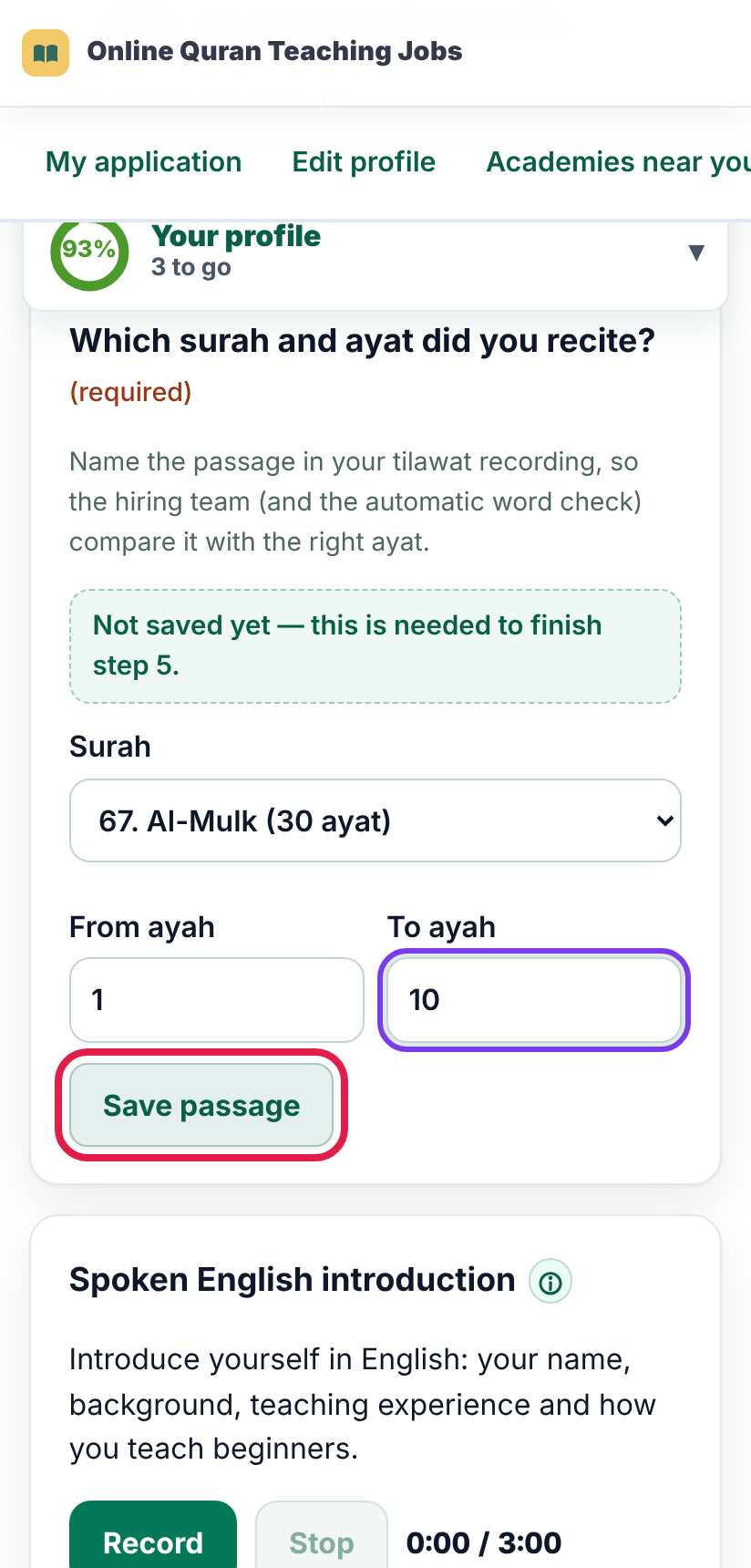
4. Name the surah and ayat you recited
Under the tilawat box, choose the Surah and type From ayah and To ayah (up to 50 ayat). Tap Save passage. This tells the hiring team, and the automatic word check, which ayat to compare with.
5. Record your English introduction
Speak in English as if you were talking to a parent in the UK or US. Mention your name, how long you have taught, what you teach (Qaida, Nazra, Tajweed, Hifz) and how you help beginners. Speak naturally; do not read from paper. A few Urdu words are fine, but keep it mainly in English. Then tap Stop → listen → Save recording.
6. Microphone still not working? Upload a file
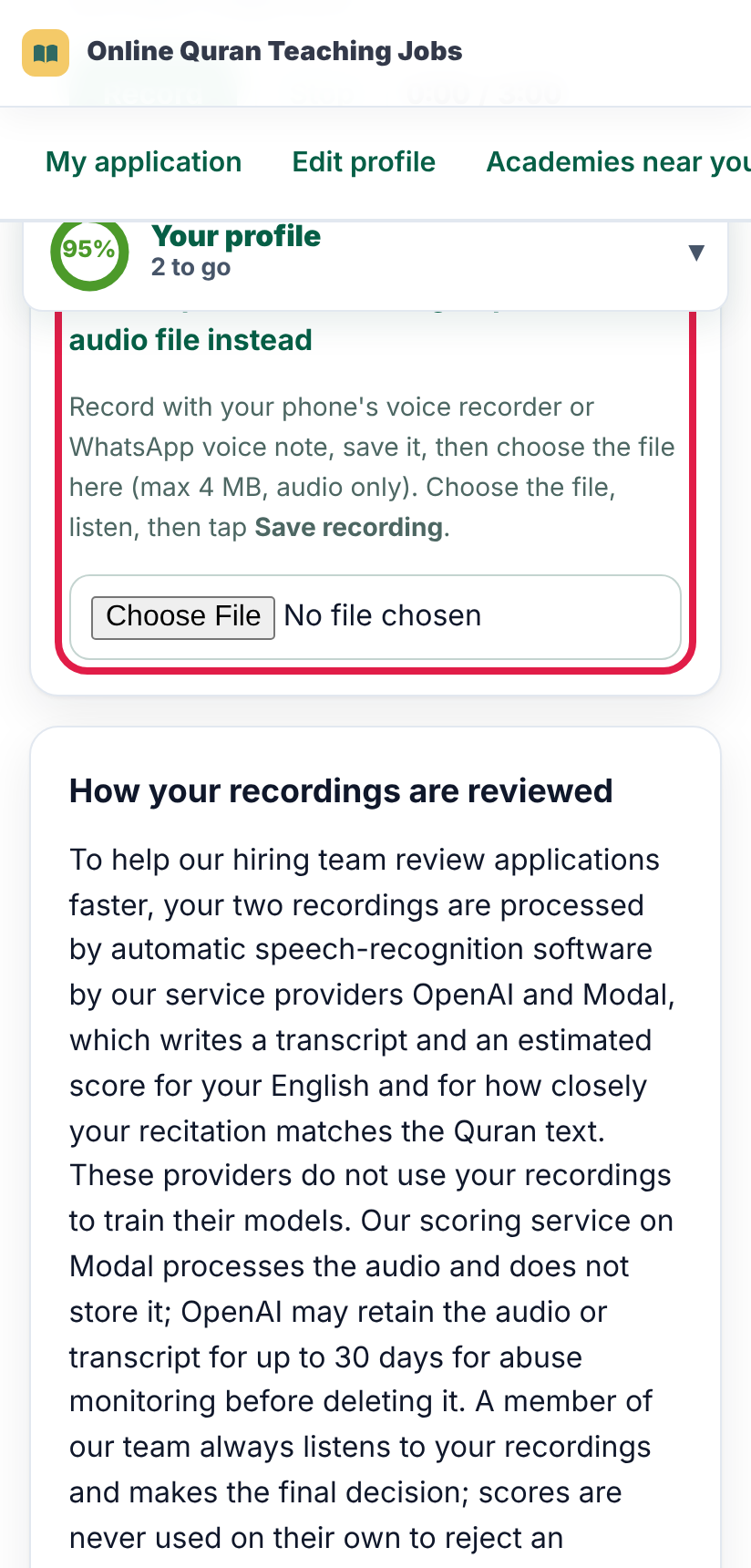
Under each recording, tap Microphone not working? Upload an audio file instead. Record with your phone’s voice recorder, or send yourself a WhatsApp voice note and save it, then choose the file.
- Accepted files:
.m4a,.mp4,.mp3,.webm,.ogg,.opus(WhatsApp voice notes) and.wav. - Maximum 4 MB and 3 minutes; minimum 20 seconds.
- After choosing the file, listen to it and tap Save recording.
7. Tips for a clear recording
- Hold the phone about a hand’s width from your mouth. A headset microphone also works well.
- No music, no other voices, no background recitation.
- Use your own voice only; you confirm this when you submit.
- Before leaving Step 5, check the panel at the top: Tilawat recording, English introduction and Surah and ayat you recited should all be ticked.
If something on the form is not working, message our team on WhatsApp at +1 929-529-8312 and tell us which step you are on. We help you fill the form; applications themselves are only accepted on the portal at apply.onlinequranteachingjobs.com. Inside the portal, a small “Need help? WhatsApp us” box may also appear if you seem stuck.